Payment Confirmed!

Your 14-day free trial is now active. Complete the onboarding below to activate your services.

Estimated duration
Less than 10 minutes
Confirmation email
Sent to your inbox
Onboarding access
Available anytime via your email
Need help? Contact us

Quick Intro

Need Help?

Please take a moment to read our disclaimer. It helps ensure everything runs smoothly and delivers the best possible experience on your side.

To ensure a smooth and successful activation of your service, it is essential that you carefully read every step of the onboarding process. Missing or skipping a step will prevent your account from being linked correctly, and in that case, your service cannot be activated.

Before going any further, if you haven't already, we strongly recommend reading the Features section of our website.
It explains in detail how the bot works, how trades are executed, and how risk management is handled.
This will help you understand what to expect, especially during periods where the bot may choose not to trade for several days.

This behavior is intentional and part of its risk-control logic — not a malfunction. Our goal is to ensure that you fully understand: how the system operates, what the bot does and doesn't do, how trades may vary depending on market conditions, and what you should expect once your account is live.

If you have any question please read our FAQ, if you don't find an answer our support is here to help.

Broker Selection

Need Help?

Create your broker account with one of our six partners. Once your account is created, select your broker below to continue.

Bullwaves
PU Prime
Axi
Startrader
VPN Required
VT Markets
VPN Required
Please make sure to create your account using the button above and leave the "Referral" field empty. This ensures that your MT5 account can be correctly linked to our bot signals. If you already have an existing account with one of our broker partners, it unfortunately cannot be connected to our system. In that case, simply create a new account with another broker to access our services.

Broker Account Setup

Need Help?

Verify your identity to unlock your deposit and withdrawal limits.

Once your Vantage Markets account is created, you will need to verify your email address, your phone number, and your ID card. After completing these steps, you will unlock the deposit and withdrawal limit of $50,000/day.

If you plan to invest more than $50,000, you will also need to verify your residential address in order to increase your limit up to $10,000,000/day.

Vantage 50k limit

Once you have completed the KYC (Know Your Customer) process, you will be able to create your MetaTrader 5 account. Simply click on the “Open Account” button to get started.

Vantage - Open account

Choose A Trading Platform: Recommended – MetaTrader 5
Choose An Account Type: RAW ECN
Choose An Account Currency: EUR is mandatory.

By ticking the box: make sure to read the user compliance before creating your account.

Submit: once you are ready and have double checked your selections, click on Submit to create your MT5 account.

Vantage - Create MT5

Congratulations, your MT5 account is created. You can now head to Step 4: Make your first deposit.

Vantage - Confirm account

Broker Account Setup

Need Help?

Set up your Bullwaves account and verify your trading dashboard before moving to deposits.

Bullwaves offers a smooth and straightforward onboarding experience. Simply enter your personal information, and your MT5 account will be created instantly. The only setting you need to review is your account currency.

We recommend choosing EUR, although it is not mandatory. Also choose your password with care since it will also be your MT5 Account Password.

Bullwaves account creation

Arriving on this dashboard confirms that your broker account is fully set up. Please verify that your platform, account type, and leverage settings are identical to the example below (MT5, Live & 500).

Bullwaves dashboard

Broker Account Setup

Need Help?

Enter your personal details, configure your MT5 account, then complete your KYC verification.

Once your PU Prime account is created, you will need to enter your personal details. After clicking “Next”, you will be prompted to set up your trading account.

PU Prime personal details

Choose Trading Platform: Recommended – MetaTrader 5
Choose Account Type: Standard
Choose An Account Currency: EUR is recommended.

By ticking the box: make sure to read the user compliance before creating your account.

Next: once you are ready and have double checked your selections, click on "Next" to create your MT5 account.

PU Prime MT5 setup

You will now be asked to complete the KYC (Know Your Customer) process. Once it’s done, you should arrive on the page shown below.

PU Prime verified account

Broker Account Setup

Need Help?

Resume your application, configure your MT5 account and confirm your Axi setup.

After creating your Axi account, you’ll arrive on this page. Simply click “Resume Application” to complete your trading account setup.

Axi resume application

After entering your personal information, you will reach the "Set up your new account" page. Make sure to configure your account using the details shown below:

Trading Platform : MetaTrader 5
Account Type : PRO
Join Axi Selection : Optional

Create Account : Once you are ready and have double checked your selections, click on "Create Account".

Axi set up your new account

After completing the KYC (Know Your Customer) process, you will arrive on the "Setup your account" page. Make sure to setup your account with the information below:

Account currency : EUR Recommended
Leverage : 1:500

Continue : Once you are ready and have double checked your selections, click on "Continue".

Axi setup your account

Congratulations! You’ve now reached your dashboard and your trading account is ready.

Axi dashboard ready

Broker Account Setup

Need Help?

Configure your Startrader account, taking VPN requirements and MT5 settings into account.

Startrader is restricted in some regions (France, European Union, United States, Singapore, India, and Russia). If you reside in one of these locations, you may technically be able to access their services using a VPN.

While this is not illegal for you as a customer, we recommend choosing another broker to ensure full compliance and avoid any potential limitations.

Once your Startrader account is created, you will be asked to enter your personal details. Once completed, click on the “Next” button.

Startrader personal details

Choose Trading Platform : Recommended – MetaTrader 5
Choose Account Type : RAW ECN
Choose Account Currency : EUR is recommended.

By ticking the box : make sure to read Terms and Conditions.

Next : Once you are ready and have double checked your selections, click on the "Next" button.

Startrader account configuration

After completing the “Account Configuration” section, you will be asked to complete the KYC (Know Your Customer) process. Once your identity is verified, you will see the confirmation message shown below.

Startrader account verified

Broker Account Setup

Need Help?

Complete your profile verification and create your MT5 account on VT Markets.

VT Markets is restricted in some regions (France, European Union, United States, Singapore, India, and Russia). If you reside in one of these locations, you may technically be able to access their services using a VPN.

While this is not illegal for you as a customer, we recommend choosing another broker to ensure full compliance and avoid any potential limitations.

Once your VT Markets account is created, you must verify your personal information, your phone number, and your email address. After completing these steps, you will be able to create your MT5 account.

On VT Markets, you are not required to verify your residential address; they will only request additional information if they detect any suspicious activity on your account.

VT Markets personal verification

Once you have completed the "Personal information" form, you will be able to create your MetaTrader 5 account.

Choose Trading Platform: MetaTrader 5
Choose Account Type: Standard STP
Choose An Account Currency: EUR is recommended.

Tick the box: make sure to read the user compliance before creating your account.

Submit: once you are ready and have double checked your selections, click on Submit to create your MT5 account.

VT Markets create MT5

Congratulations, your MT5 account has been created. You now need to complete the second step of the KYC (Know Your Customer) process in order to unlock trading features of your account.

VT Markets KYC

Once done, you are all set.

VT Markets completed

Initial Deposit

Need Help?

Important information before making your first deposit.

Important – Initial Deposit Instructions

To activate your access on the broker side, a first deposit of exactly €1,000 is required.

Please note that there is no benefit in depositing more than €1,000 at this stage. On the contrary, we strongly recommend not exceeding this amount for now.

Here is why:

The next step of the onboarding process (Step 5) includes a mandatory verification trade required by the broker as part of their anti-bot and account validation procedure. This trade must be placed with a lot size of 1, which is unusually high for an initial setup.

Because of this, depositing more than €1,000 at this stage would only increase unnecessary exposure, without providing any advantage.

Rest assured:

  • This verification step is standard and temporary
  • We will guide you step by step through the process
  • You will receive clear best practices to execute this trade safely
  • There is no need to stress – the goal is validation, not performance

Once this step is completed, your account will be fully validated and ready to operate under normal conditions.

Once on your Bullwaves dashboard, click on the \'Fund Account\' section in the left-hand panel. You will then be taken to the window displayed below. Make sure to select the correct account and enter 1,000€ (or equivalent) in the amount field.

On the right side, choose your preferred payment method and click the \'Deposit Funds\' button. From there, simply complete the deposit process.
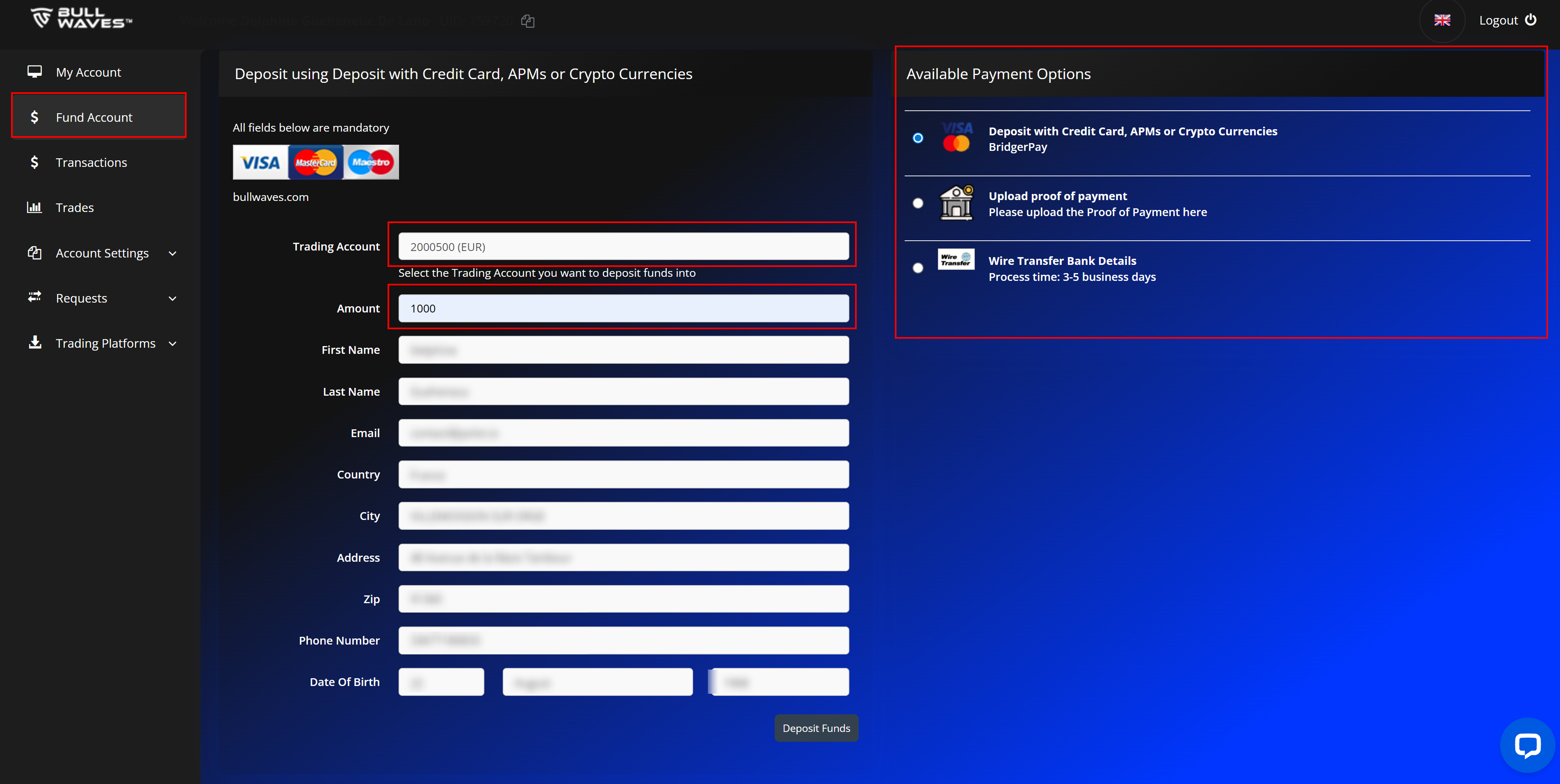
Bullwaves funding window

To fund your account, go to the \'Funds\' tab in the left-hand menu. You will then arrive on the page displayed below. Make sure to select your newly created account and enter 1,000 in the amount field. Then, simply click the \'Continue\' button.

PU Prime Funds deposit

From here, choose your preferred payment method to continue funding your account.

PU Prime payment methods

On your Axi Dashboard, click on the "Fund" section on the left hand side, to arrive on the page shown below. From here select your funding method and enter your details.
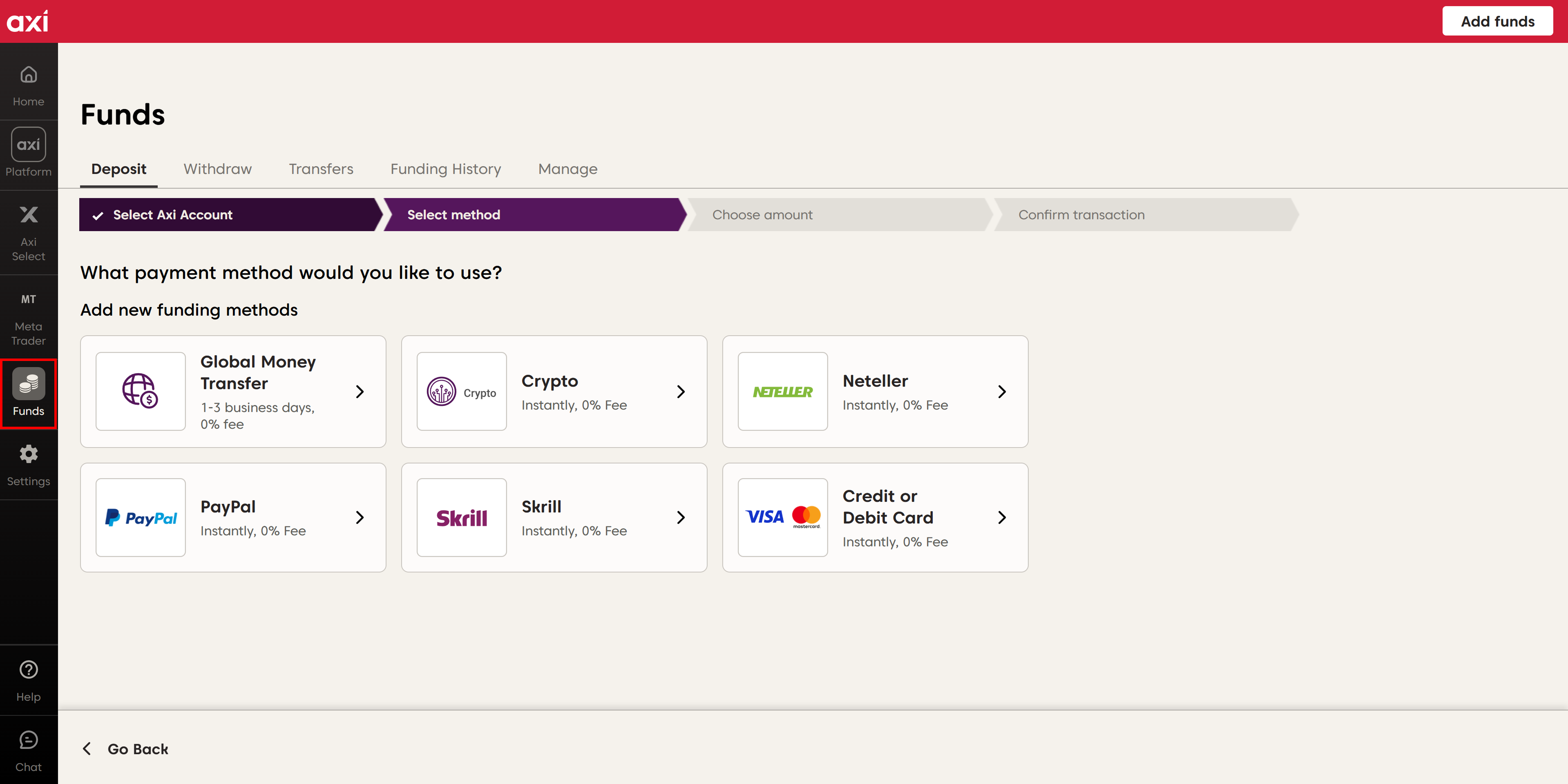
Axi funding methods

Once you reach the page shown in the image below, make sure to enter €1,000 (or equivalent) in the appropriate field.

Axi deposit amount

On your Startrader dashboard, click on the ‘Fund’ section on the left-hand side to reach the page shown below. From there, make sure to select your newly created account and enter a funding amount of at least €1,000 (or equivalent).

Startrader deposit amount

From this page, select your preferred payment method to proceed with account funding.

Startrader payment method selection

On your VT Markets dashboard, click on the ‘Funds’ > ‘Deposit’ section on the left-hand side to reach the page shown below. From there, make sure to select your newly created account and enter a funding amount of at least €1,000 (or equivalent).

VT Markets deposit amount

From this page, select your preferred payment method to proceed with account funding.

VT Markets payment method selection

On the Vantage Markets dashboard, use the ‘Deposit’ button on your newly created MetaTrader 5 account to fund it.
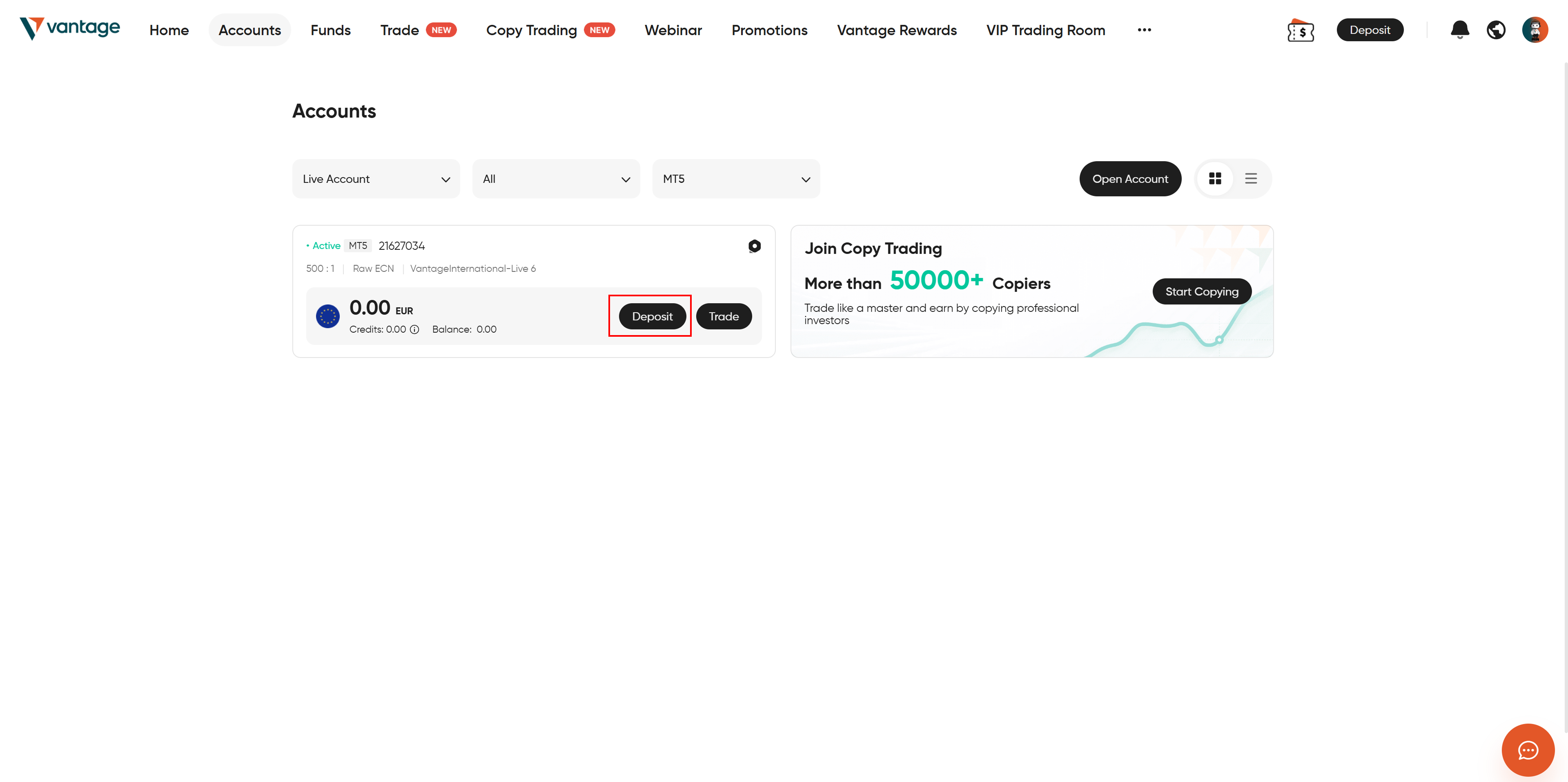
Vantage Markets Deposit button

On reaching this windows, make sure to verify you selected your newly created account (normaly automatic). And introduce your desired fund amount (at least 1000€ or equivalent in for your currency).

Vantage Markets deposit amount

From here, choose your preferred payment method to continue funding your account.

Vantage Markets payment method

MetaTrader 5

Need Help?

Download MetaTrader 5 on your smartphone to manage your account and follow the next steps. You can also search for "MetaTrader 5" directly on the App Store (iOS) or Play Store (Android).

If the download links do not open correctly, simply search for MetaTrader 5 in your store and install the official app.

MetaTrader Setup

Need Help?

Locate your MT5 credentials, log in to MetaTrader 5, and prepare your trading pairs.

Now that you have created and funded your MetaTrader 5 account, you will need your login credentials. These are always sent to your email inbox by your selected broker.

To help you find them, you can search for \'MT5 Account\' in your mailbox. Also make sure to check your spam folder. The email should look similar to the example shown below.

Note: Bullwaves users: your MT5 account password is the same as your Bullwaves account password.
Example email showing MT5 credentials

You can now open MetaTrader 5 on your phone and begin the login process. When the app opens, you may be prompted to \'Open a demo account\'. Simply close this prompt. You will then need to log in to your \'Trade Account\'.

Next, enter your server name in the search bar and select the first result that matches your broker\'s name. Finally, enter your MetaTrader 5 account credentials (sent to you by email), and you will be logged in.

MetaTrader 5 login tutorial

Once you are logged in, it\'s time to prepare your account for trading. You will need to add two quotes, which depend on your broker. Each broker uses its own specific pair of quotes. Please refer to the table below and add the two quotes corresponding to your selected broker.

MetaTrader 5 quotes tutorial

CONGRATULATION!

Your trading account is fully setup and ready for the anti-bot and account validation procedure.

Important notice:

The next step must be completed with extreme caution to ensure minimal impact on your trading capital. This step consists of placing a trade with a lot size of 1 for 15 seconds, after which you will be free to close the position.

We strongly recommend completing this step outside of the New York trading session, which occurs between 2:30 PM and 5:30 PM (UTC+1 – Paris, Brussels, Berlin), in order to minimize market volatility and reduce risk. Also note that trading markets are closed during Weekends.

Account Verification Trade

Need Help?

Set up your verification trade in MetaTrader 5.

You will now need to set up the account verification trade.
Go to the \'Trade\' section in your MetaTrader 5 application and tap the \'+\' button. You will then be able to modify your trade settings.

Set the trading pair to EURUSD, corresponding to the quote you added in the previous step (refer to the image to confirm the EURUSD quote linked to your broker).
Make sure to enter a lot size of 1.00. This is mandatory, and the verification will fail if a different lot size is used.

Account verification trade setup tutorial
Before proceeding with any action, please read this entire step carefully.

This step must be handled with extreme caution in order to protect your trading capital as much as possible.
When you are ready, click the \'Buy by Market\' button. Your trade will start immediately.
Wait for at least 15 seconds, then close the trade.

That\'s it. Congratulations! Your account is now fully validated and ready to be connected to Javlot.

Account verification trade execution tutorial

Connect to Javlot

Need Help?

Enter your MetaTrader 5 credentials to securely link your trading account to the service.

Please double-check all information before submitting. Incorrect details will prevent us from linking your MT5 account to the service. Your MT5 credentials are highly sensitive. Never share them outside of this secured setup process. The Javlot team will never request your login details directly.

This form is encrypted, processed automatically, and used exclusively to connect your trading account to the service. Your credentials are not stored, not accessible to our team, and not retained once the automated setup is completed.